How to Stop LinkedIn InMail Without Missing the Messages That Matter

There is a single setting that turns off InMail (Settings & Privacy, Data Privacy, Messages, then set “Allow others to send you InMail?” to No). But that switch is channel-level, not intent-level: it silences the recruiter blast and the warm investor intro in the same breath.
LinkedIn has no spam filter, so its controls only let you block whole channels, never the junk inside them.
If your inbox is too important to nuke, the fix is not a toggle. It is filtering by intent, which scores each message and moves the junk aside while keeping every real message visible.
Key takeaways
- Turning off InMail is one channel-level setting (Settings & Privacy, Data Privacy, Messages, “Allow others to send you InMail?” set to No). It blocks every InMail sender, including the ones you want.
- LinkedIn removed the general opt-out for Sponsored Messaging. You can now only report or hide individual ads, and none of LinkedIn’s ad settings stop you seeing ads at all.
- Four different things land in your inbox (connection messages, InMail, Sponsored Messaging, and connection-request notes), and each has a separate control, which is why “just turn off spam” never works.
- LinkedIn’s native inbox has no spam filter. It filters by channel, not by intent, so any switch you flip is all-or-nothing.
- Linbox filters by intent: it scores every never-answered message 0-100 on content, sender headline, and connection degree, moves high-confidence junk to a separate Spam bucket, and never deletes anything.
The four things that actually land in your LinkedIn inbox
Your LinkedIn inbox is not one stream. It is four different mechanisms wearing the same coat: regular messages from your 1st-degree connections, InMail (paid messages from LinkedIn Premium members who are not connected to you), Sponsored Messaging (native ads billed to advertisers, not really messages at all), and the short notes attached to connection requests.
Each one has its own separate control, which is exactly why “just turn off the spam” never works.
Here is the part every other guide skips: LinkedIn’s native inbox has no spam filter. None. There is no equivalent of the automatic spam filtering email inboxes have had for two decades.
So the only levers LinkedIn gives you operate on the pipe, not on the water: you can shut a whole channel or restrict who is allowed to use it, but you cannot tell it “hide the templated pitches and keep the real intros.”
A cold recruiter blast and a genuine role you would take both arrive as InMail. A customer reply and a “quick question” automation both arrive as a message. When the good and the junk share a channel, a channel-level switch is a blunt instrument. That single fact explains why every setting below has a hidden cost.
How to turn off LinkedIn InMail (and the recruiter intro you will lose)
To stop InMail: click your Me icon, open Settings & Privacy, go to the Data Privacy tab, find Messages under “Who can reach you,” and set “Allow others to send you InMail?” to No. That is the whole path, and it works (LinkedIn Help, Opt Out of Receiving InMail Messages).
Now the cost nobody mentions. InMail is how people who are not yet your connections reach you: the recruiter for the role you would actually take, the investor doing a cold intro before the mutual connection loops in, the founder who wants to partner.
Turning off InMail is channel-level, so it silences all of them along with the templated recruiter spam. For a founder, CEO, or investor whose next opportunity might arrive from someone they have not met yet, that trade is usually a bad deal.
You are trying to remove intent (cold pitches) and the switch only removes a channel (everyone using InMail). The spam you wanted gone and the intro you wanted kept were traveling together.
Can you block Sponsored Messaging? The opt-out LinkedIn quietly removed
Short version: you cannot fully block Sponsored Messaging anymore. LinkedIn removed the general opt-out setting. Your only remaining moves are to report or hide an individual ad after it lands, and even then LinkedIn is explicit that “none of the ad settings opt you out of seeing ads on LinkedIn” (LinkedIn Help, LinkedIn Ads settings).
Sponsored Messaging is native advertising displayed inside your messaging experience, not a message from a person, which is why the InMail toggle does nothing to it (the same LinkedIn help page that covers InMail spells out that these are separate).
The one real exception is regional. After a November 2021 European Court of Justice ruling that inbox advertising needs direct marketing consent, LinkedIn restricted EU-member targeting for Sponsored Messaging and stopped delivering these campaigns to members based in the EU as of January 2022 (Sprinklr Help, EU Member Targeting Restrictions for LinkedIn). Everywhere else, the ads keep coming and report-or-hide is the ceiling.
The trap: filtering by channel vs filtering by intent
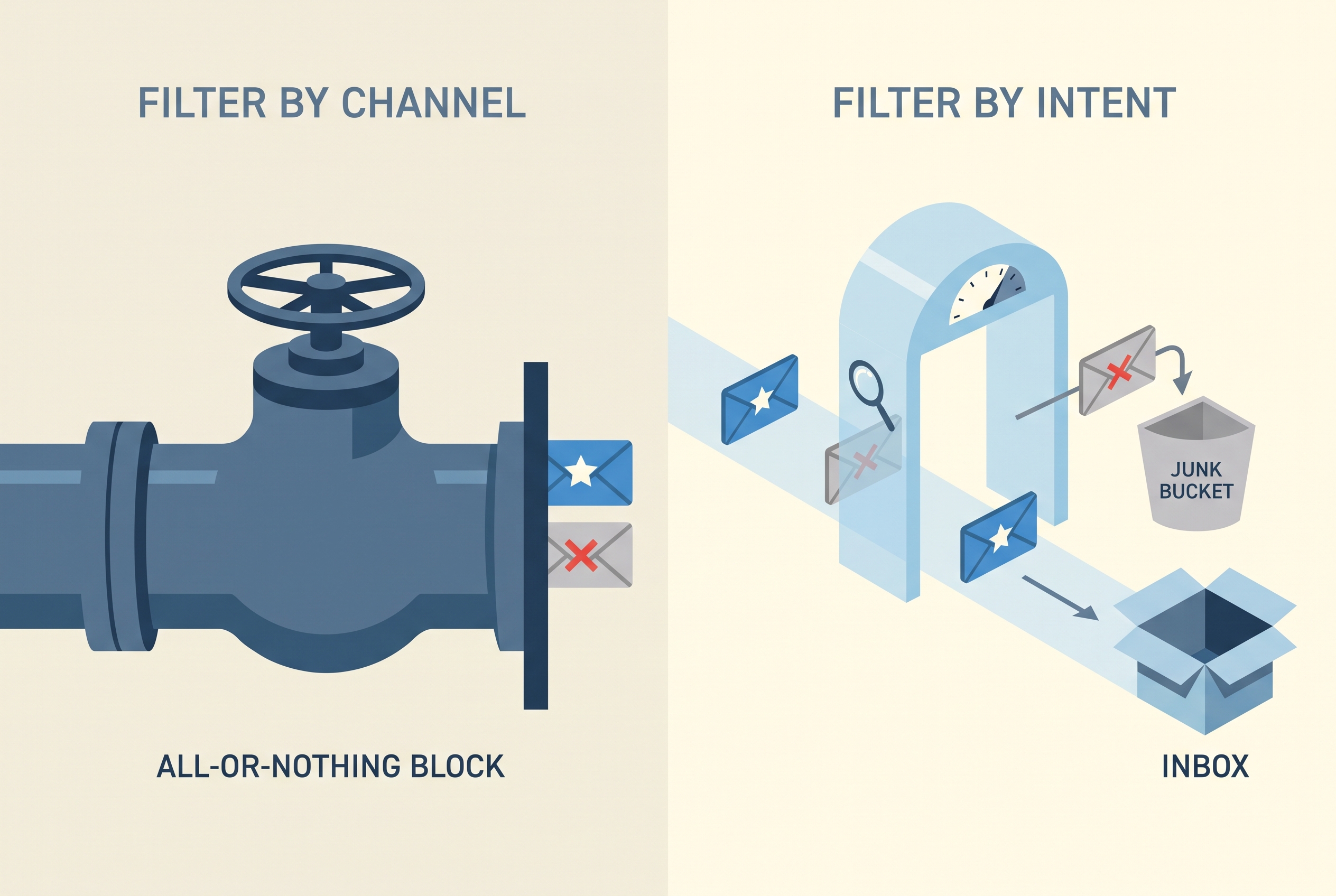
Here is the core reason the native settings force an all-or-nothing choice: LinkedIn filters by channel, and spam is defined by intent. A message is spam because of what it is (a cold templated pitch to someone who never asked), not because of which pipe it came through. But every LinkedIn control operates on the pipe: turn InMail on or off, restrict who can message you, report an ad after the fact.
Filtering by channel is like unplugging your phone to stop robocalls. It works, and it also means your kid cannot reach you. The real messages and the junk use the same channels, so any channel-level switch silences the warm intro along with the blast.
This is the trap the other guides walk you into: they tell you to tighten settings, then leave you choosing between drowning in noise and going invisible to real opportunity. Neither is acceptable when a single missed investor or customer reply has a real cost.
The way out is not a better toggle. It is filtering the inbox by intent, which is what a spam score does.
Filter by intent instead: how an actual spam score works
Intent filtering is the missing spam layer LinkedIn never built, and it is what Linbox does. Linbox is a standalone web app that syncs with your LinkedIn messaging, and it scores every unanswered cold message from 0 to 100 based on three signals: the message content, the sender’s headline, and your connection degree.
High-confidence junk moves to a separate Spam bucket. Borderline cases stay in your inbox with a flag, so nothing important gets buried on a guess.
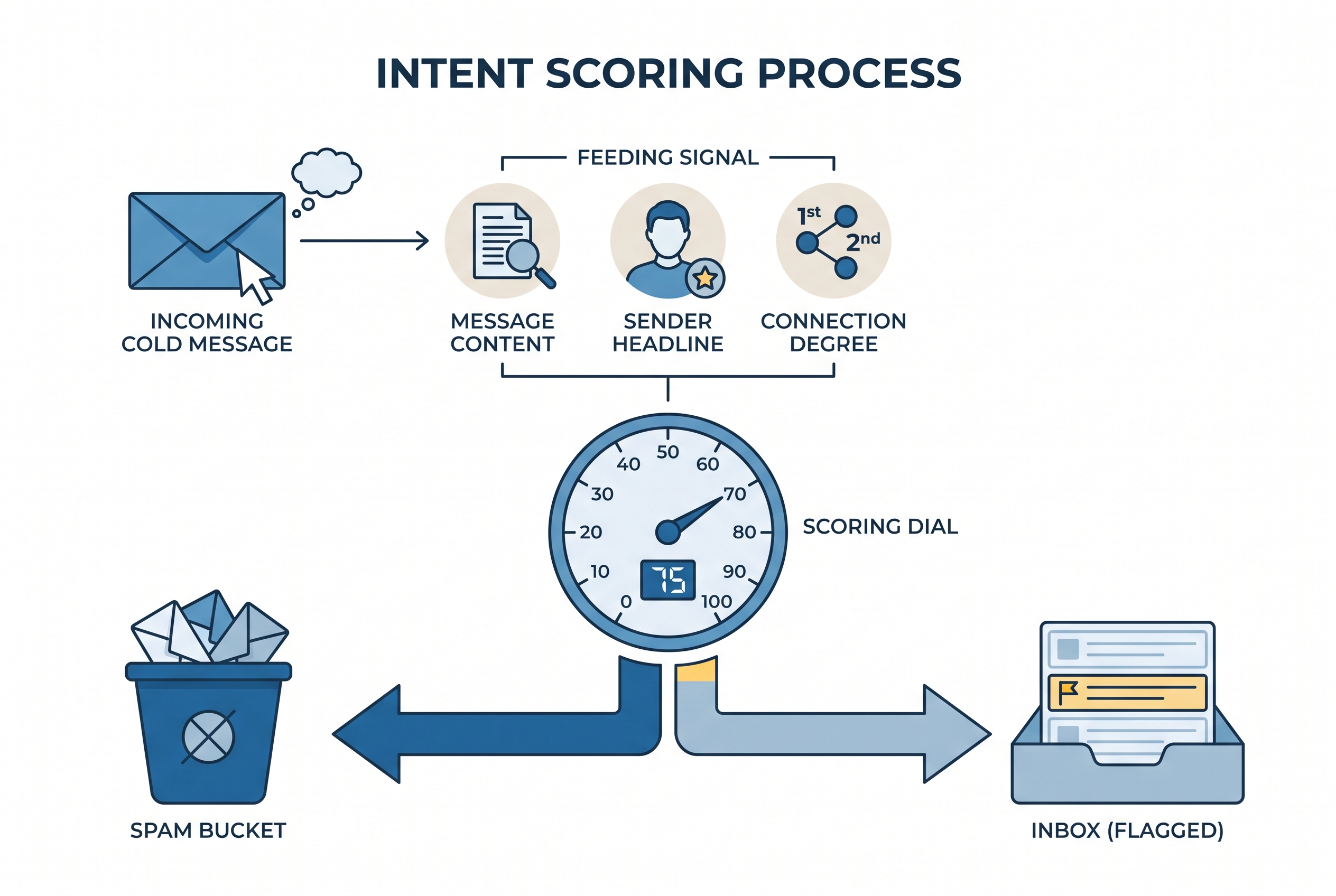
The design leans hard toward never hiding a real message, which is the exact fear this whole problem creates. Nothing is ever deleted: it is moved. If you reply to someone, they come out of Spam automatically. If the score got it wrong, you mark “not spam” and the thread returns.
When you first turn the filter on it back-scans your last 30 days so your existing pile gets sorted, and you can turn the filter off anytime.
On the privacy side, message previews are scored in real time and are not stored on Linbox servers, and the classifier runs on OpenAI’s gpt-4o-mini, which does not train on API data. Only one-sided, never-replied conversations get classified, so your actual back-and-forth threads are left alone.
The net effect: the channel stays open, the recruiter blast and the ad noise drop into Spam, and the investor intro stays right where you would see it.
A clean inbox worth opening again
Linbox adds three triage layers on top of the spam filter: unlimited custom labels, follow-up reminders, and keyboard-driven navigation.
The labels take colors (investor, customer, partner), filter and combine, and stay private, invisible on LinkedIn and synced across your devices. A follow-up reminder on any conversation (“Next Monday,” “In 2 weeks”) hides the thread, then resurfaces it in the Reminders view with full context so you never lose the thread of a deal.
For triage speed there are split inbox views (named, rule-based views by label or participant, each with its own unread counter) and single-key keyboard shortcuts in the Gmail and Superhuman style: J and K to navigate, A to archive, S to label, D to set a reminder.
Working an inbox with J, K, A, S, and D and a per-view unread counter is the whole idea: not a louder inbox, not an emptier one, just the one that is finally worth opening because the three messages that could change your quarter are no longer buried under thirty that never mattered.
Comparison: the native controls vs an intent filter
| What you want to stop | Native LinkedIn control | What it silently costs you | Filter-by-intent (Linbox) |
|---|---|---|---|
| Recruiter and sales InMail | Turn off “Allow others to send you InMail?” | Also blocks the warm investor and recruiter InMail you would want | Scores each InMail 0-100; junk to Spam, real intros stay visible |
| Sponsored Messaging ads | No general opt-out; report or hide each ad | Ads keep arriving; ad settings never stop you seeing ads | Never-answered ad-style messages get scored and moved aside |
| Cold “quick question” spam | No spam filter exists | You read and delete each one by hand | High-confidence spam auto-moves to a Spam bucket, nothing deleted |
| Losing a real message | Archive or restrict who can message | Over-restrict and you go invisible to real opportunity | Reply un-spams a sender; “not spam” restores; nothing deleted |
FAQ
Does turning off InMail stop Sponsored Messaging?
No. They are separate mechanisms with separate controls. InMail is direct messages from premium members and is governed by the “Allow others to send you InMail?” setting. Sponsored Messaging is native advertising inside your inbox and is not affected by the InMail toggle at all (LinkedIn Help).
Will I miss recruiter or investor messages if I opt out of InMail?
Yes, and that is the trap. InMail is how people who are not yet your connections reach you, so turning it off blocks the cold recruiter blasts and the legitimate outreach (the role you would take, the investor intro) at the same time. The switch removes a channel, not an intent, so it cannot tell the two apart.
Can I fully block Sponsored Messaging on LinkedIn?
No. LinkedIn removed the general opt-out. You can report or hide individual ads, but LinkedIn states that none of its ad settings stop you from seeing ads (LinkedIn Ads settings). The one exception is regional: Sponsored Messaging stopped delivering to EU-based members in January 2022 after a European Court of Justice ruling (Sprinklr Help).
Does LinkedIn have a spam filter?
No. LinkedIn’s native inbox has no spam filter. Its controls only let you block or restrict whole channels, which is why unwanted messages have to be handled by hand or by a separate tool. Linbox adds the intent-level filter LinkedIn lacks, scoring never-answered messages and moving the junk aside.
Does filtering delete my messages?
No. Linbox never deletes anything. High-confidence spam is moved to a separate Spam bucket, borderline messages stay flagged in your inbox, replying to someone removes them from Spam, and you can mark “not spam” to bring any thread back.
Frequently asked questions
- How do I disable Sponsored Messages on LinkedIn?
- You cannot fully disable them. LinkedIn removed the general Sponsored Messaging opt-out, and its own ad settings state that none of them stop you from seeing ads. You can report or hide individual sponsored messages one at a time, and the one exception is regional: Sponsored Messaging stopped delivering to EU-based members in January 2022 after a European Court of Justice ruling.
- Does turning off InMail stop Sponsored Messaging?
- No. They are separate mechanisms with separate controls. InMail is direct messages from premium members, governed by the "Allow others to send you InMail?" setting. Sponsored Messaging is native advertising inside your inbox and is not affected by the InMail toggle at all.
- Will I miss recruiter or investor messages if I opt out of InMail?
- Yes, and that is the trap. InMail is how people who are not yet your connections reach you, so turning it off blocks the cold recruiter blasts and the legitimate outreach at the same time. The switch removes a channel, not an intent, so it cannot tell the two apart.
- Does LinkedIn have a spam filter?
- No. LinkedIn's native inbox has no spam filter. Its controls only let you block or restrict whole channels, which is why unwanted messages have to be handled by hand or by a separate tool. Linbox adds the intent-level filter LinkedIn lacks, scoring never-answered messages and moving the junk aside.
- Does filtering delete my messages?
- No. Linbox never deletes anything. High-confidence spam is moved to a separate Spam bucket, borderline messages stay flagged in your inbox, replying to someone removes them from Spam, and you can mark "not spam" to bring any thread back.