How to Stop Spam and Cold Outreach in Your LinkedIn Inbox

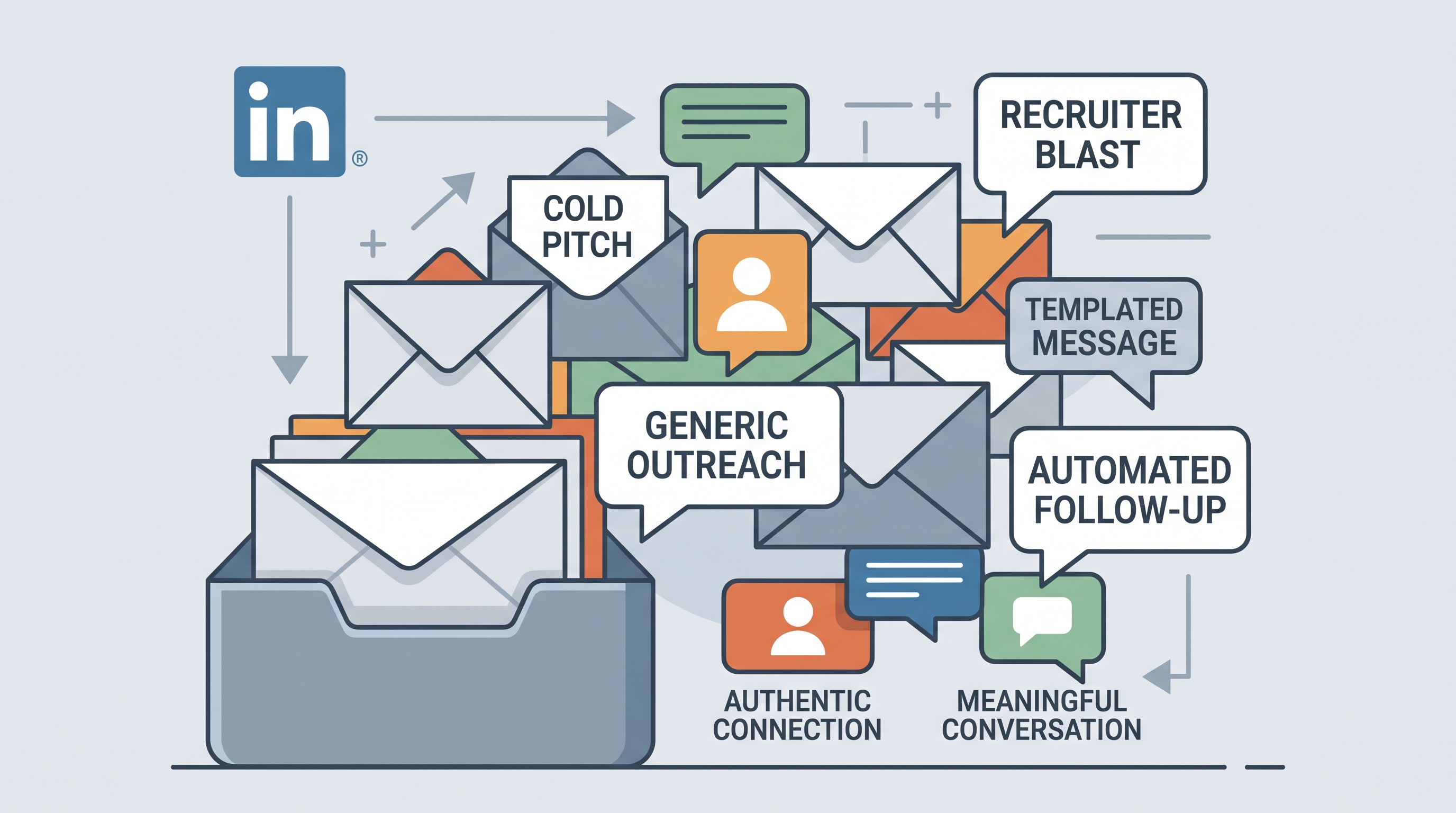
LinkedIn has no spam filter. Every cold pitch, recruiter blast, and templated “quick question” lands in the same inbox as the messages that actually move your career or your company forward. The fix isn’t triaging harder, it’s letting an AI sort the noise out automatically, so the only DMs left are the ones worth your time. Here’s how to take your LinkedIn inbox back.
Why is my LinkedIn inbox full of spam?
Because LinkedIn rewards outreach at scale and hands you nothing to defend against it. Sales platforms and AI tools let anyone message thousands of people a day, and the more senior your profile, the bigger the target. Much of that volume is paid for: senders on LinkedIn Premium plans like Sales Navigator get monthly InMail credits precisely to reach people outside their network. There’s no spam folder, no inbox rules, and no automatic filter, so every pitch lands in your primary inbox.
It gets worse along three lines:
- Volume. Outreach tooling blasts LinkedIn at scale. The share of your inbox that genuinely matters keeps shrinking.
- Disguise. “Hey [Name].” “Saw your profile.” “Quick question.” Cold templates are so predictable that real messages get dismissed in the same scroll.
- Paralysis. When the people who matter are buried under outreach you never asked for, the easiest move is to ignore the whole thing, and real opportunities slip away.
Can you stop spam on LinkedIn natively?
Only partially, and only by hand. You can report a message as spam, ignore a conversation, or tighten who’s allowed to message you in Settings. But none of that filters your inbox automatically, cold outreach still arrives, and you still triage every thread yourself. There’s no native spam folder and no inbox rules.
Here’s what LinkedIn actually gives you, and where each option runs out.
Tighten who can message you
In Settings → Communications, you can limit who sends you invitations and messages. It trims some inflow, but it’s a blunt instrument: the same wall that blocks a stranger’s spam also blocks the warm intro you actually wanted. You’re trading missed opportunities for a quieter inbox.
Report, ignore, and archive
You can report a message as spam or ignore a conversation one at a time. It works, for that one thread. When you’re getting dozens or hundreds of cold messages a week, manual triage isn’t a filter. It’s a second job.
How do you filter LinkedIn cold outreach automatically?
Use a tool that reads your LinkedIn inbox and sorts it for you. Linbox adds an AI spam filter built specifically for LinkedIn DMs: it recognizes cold pitches and recruiter blasts and moves them out of your primary inbox automatically. What’s left is the people who actually matter, no rules to write, no threads to babysit.
It runs where your inbox already lives. Linbox pairs a browser extension with a web app at app.uselinbox.com, so the filtering happens right inside LinkedIn. Cold outreach gets routed out of the way the moment it arrives; the messages that matter stay front and center. Instead of scanning every thread to decide what’s real, you open an inbox that’s already been triaged for you.
How do you keep a LinkedIn inbox clean once the spam is gone?
Filtering is step one. To keep the inbox usable, add a little structure: label conversations by client or deal stage, set reminders so “I’ll reply later” actually happens, and triage from the keyboard instead of the mouse. A clean inbox only stays clean if managing it is faster than letting it pile up.
Linbox bundles the layer that keeps it that way:
- Labels: tag threads by client, deal stage, or any system you like, and filter in one click.
- Reminders: set a reminder on any conversation and have it resurface exactly when you need it.
- Keyboard shortcuts: A to archive, S to label, D to set a reminder. Triage without leaving the keyboard.
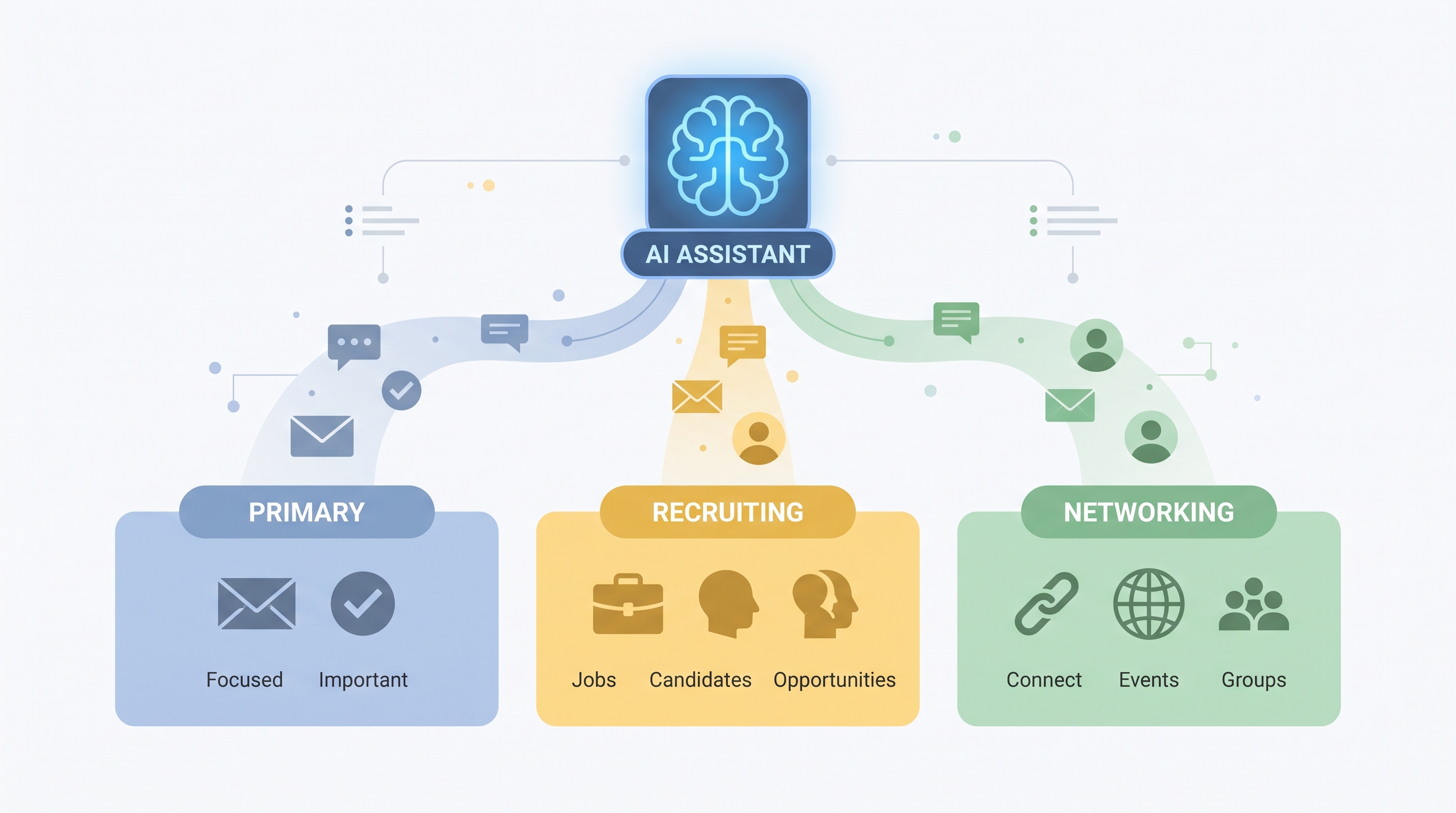
- Split inbox: separate Primary, Recruiting, and Networking into focused views, so you see what matters first.
The bottom line
LinkedIn isn’t going to fix this for you, there’s no spam folder on the roadmap, and the volume of cold outreach only climbs. The practical move is to add the filter LinkedIn is missing: let AI clear the cold pitches and recruiter blasts automatically, then keep the inbox organized so the people who matter never get buried again.
That’s exactly what Linbox is built to do. You can try it free for 7 days, no credit card required.
Frequently asked questions
- Does LinkedIn have a spam folder?
- No. Unlike email, LinkedIn has no spam folder and no inbox rules - every message lands in the same place. That's why high-inbound users add a dedicated filter like Linbox to separate signal from noise automatically.
- Why am I getting so much cold outreach on LinkedIn?
- Outreach platforms and AI tools let sellers and recruiters message thousands of people at scale. The more senior or visible your profile, the more you're targeted, so your inbox fills with templated pitches you never asked for.
- How do I filter recruiter messages on LinkedIn?
- LinkedIn has no native recruiter filter. You can archive them by hand, or use Linbox to auto-route recruiter blasts into a separate view and keep your primary inbox for the people who matter.
- Can you block spam on LinkedIn?
- You can report or ignore individual messages, but LinkedIn has no automatic spam filter, so cold outreach keeps landing in your primary DMs. An AI filter built for LinkedIn like Linbox sorts cold pitches out of the way for you.